45k user reviews & 1 million votes, over 29k web hosting brands & 85k plans since 2004!
Menu
WHTop → 📋 News → TD SYNNEX Adds ScaleFlux SSDs to Its Portfolio
Sep, 2022 : TD SYNNEX Adds ScaleFlux SSDs to Its Portfolio
📅 - TD SYNNEX, a worldwide IT distributor and solutions aggregator created via the merging of Tech Data and Synnex, has added ScaleFlux to its IT distribution solutions portfolio.
Tags: IaaS HostingNewsCheryl Nealdata center storageiaas hostingRob WilsonscalefluxssdTD SYNNEX
Reads: 1470 | Category: General | Source: Hosting Jurnalist : Hosting Jurnalist | Author: Editorial Team HostingJournalist URL source: https://hostingjournalist.com/news/td-synnex-adds-scaleflux-ssds-to-its-portfolio Want to add a website news or press release ? Just do it, it's free! Use add web hosting news!
Other news
📅 - Hosting Provider MOD Becomes Microsoft Azure ExpressRoute Partner - By achieving Microsoft Azure ExpressRoute partner accreditation, MOD Mission Critical now enables the most direct, private, and secured access to Microsoft's entire range of office products through its own PaaSPort ...
📅 - How Do I Create Email Accounts in cPanel? - By default, you have no email account set up. The main username may look like it is set up as an email, but you will need to add it as an email account if you wish to use it.
To create an email account:
Log in to cPanel. Look for the Email section, then click Email Accounts. Click the + Create button located on the right-hand side.Email Accounts - Create button Enter the required details to create a new email account on the next page Domain: Select the domain where you wish to create the new email account. Username: Enter your email username. Password: Enter your email password. You will notice the Optional Settings. Click the Edit Settings button to customize the new email account. This i
📅 - Changing the Default Currency - WHMCS - WHMCS has a multi-currency system that allows clients to choose from one or more currencies. On a new installation, the system default currency is USD. If you have not generated any invoice or transaction data yet, you can change this.
To do this:
1. Go to Configuration > Setup Wizard (Help > Setup Wizard prior to WHMCS 8.0). 2. Click Next to proceed to the step 1 of the wizard.
3. Select the desired country. WHMCS will attempt to assign the currency of this country. If you haven’t already, we recommend using the Setup Wizard to complete initial configuration. If you have finished intial configuration already, click Skip Step to proceed through the steps.
📅 - Cogent Deploys PoPs at Two of Proximity’s UK Data Centers - Cogent Communications, one of the world's largest Internet Service Providers, has chosen the colocation facilities of Proximity Data Centres as a strategic Point of Presence ...
📅 - Microsoft Unveils New CDN Offering, Microsoft eCDN - Following Microsoft's acquisition of CDN provider Peer5 last year, the vendor has now unveiled its latest content delivery network offering, Microsoft ...
📅 - Dutch Hosting Provider Weserve Acquires Datacenter Groningen - Hosting company Weserve, a provider of web hosting, dedicated servers, VPS cloud and fiber optic services based in the east of the Netherlands, has acquired Datacenter Groningen for an undisclosed sum of ...
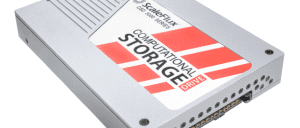 📅 - TD SYNNEX, a worldwide IT distributor and solutions aggregator created via the merging of Tech Data and Synnex, has added ScaleFlux to its IT distribution solutions portfolio.
 📅 -
📅 -